A YouTube whitelist puts you in charge of the library. Pickwick gives kids a calm player for the channels and playlists you approve, on Android phones, tablets and the family TV.
Free & open source · Android / Google TV / Fire TV Beta · Sideloaded from GitHub · Android parent phone required
[ pickwick / on the television ]
See the TV experience.
01 / 05
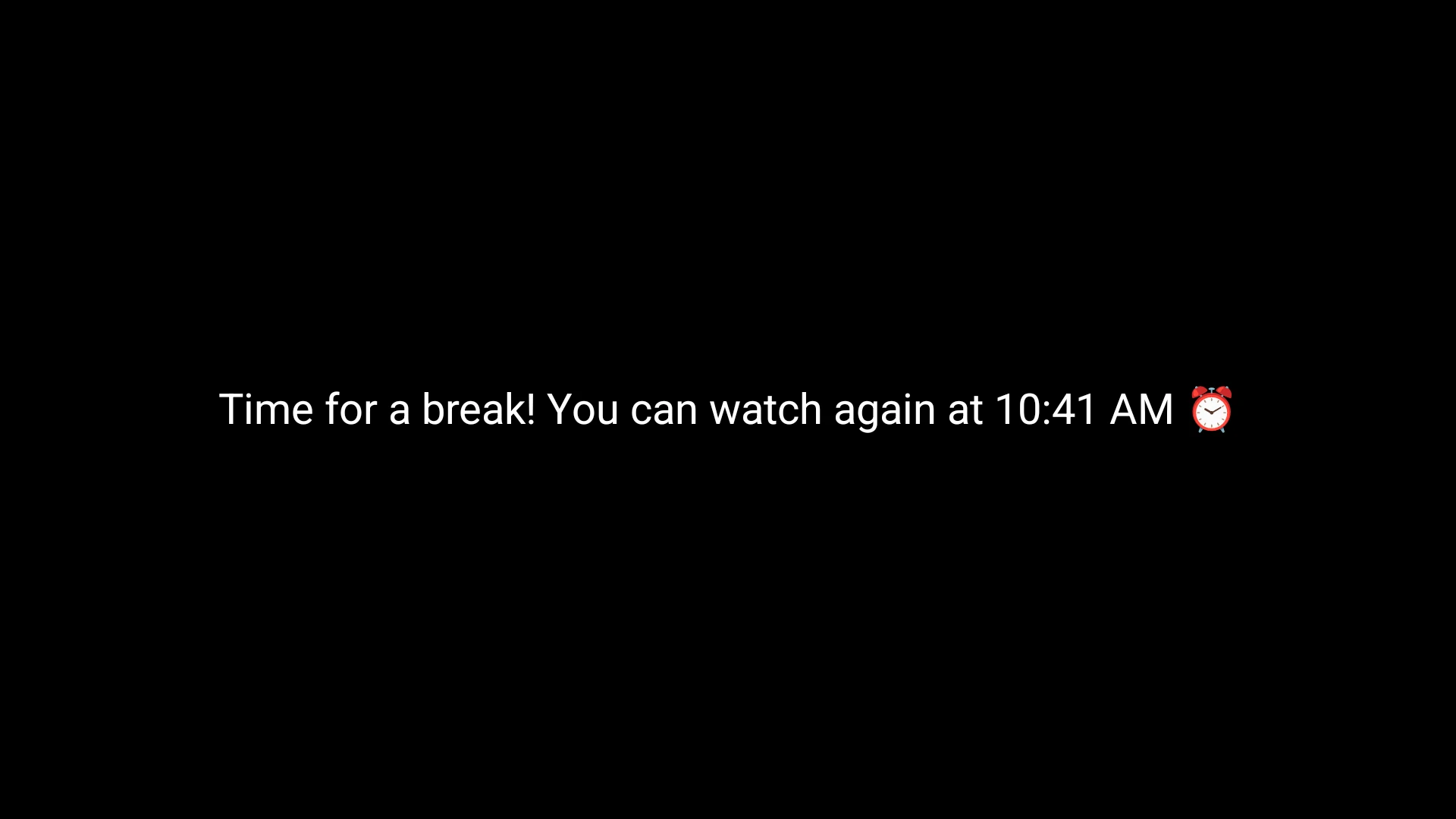
Fresh screenshots from Pickwick running on a real TV, with example profile names. A shared television can offer a separate profile for each child, an approved library to explore and a clear pause when it is time for a break. Browse the screens to see how channels and story podcasts look from the sofa, with a remote in hand.
[01]
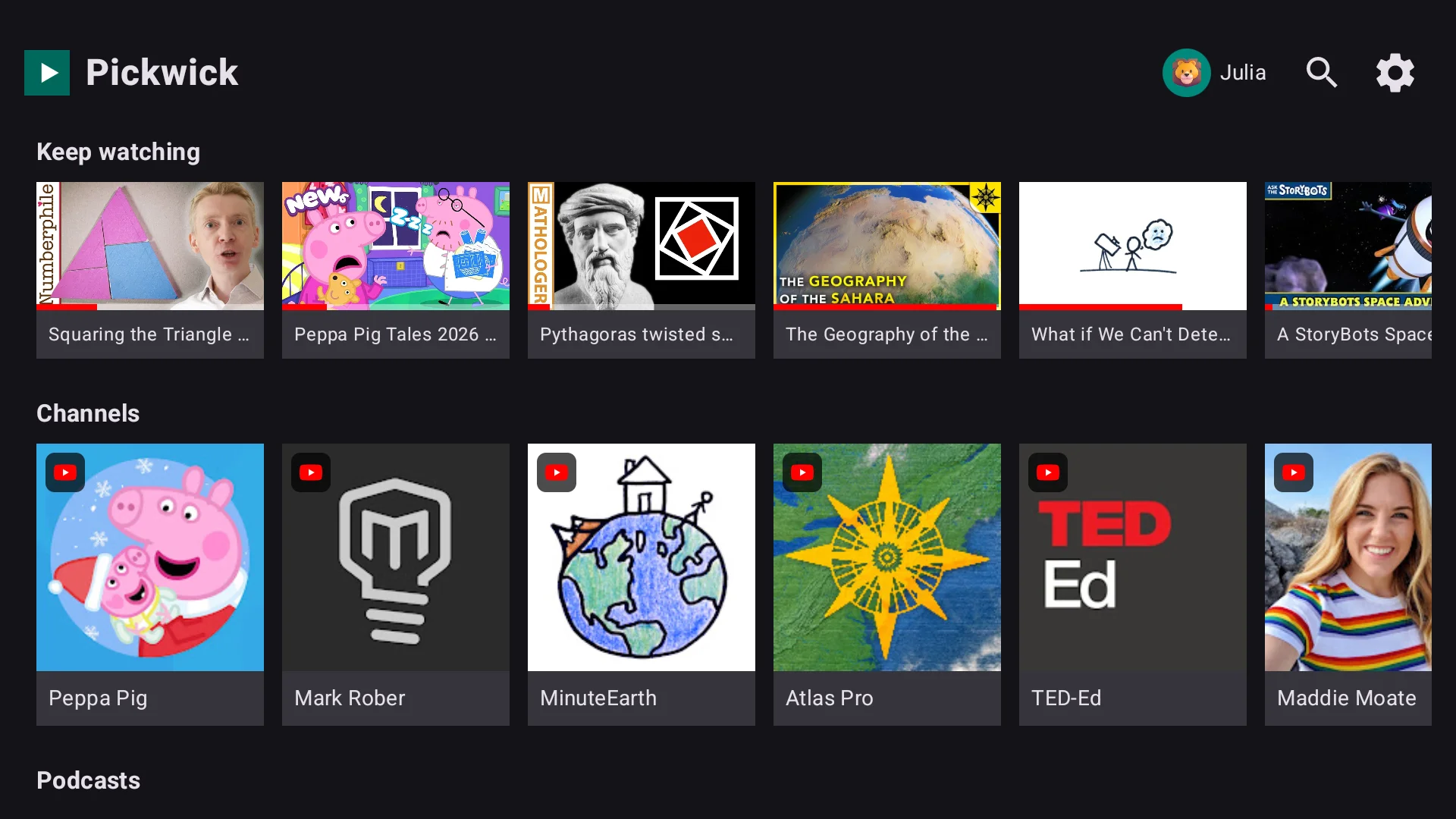
An approved library, ready for the remote
A familiar place to return: resume a video or browse the channels a parent has chosen. Large tiles keep the library easy to navigate from the sofa.
[02]
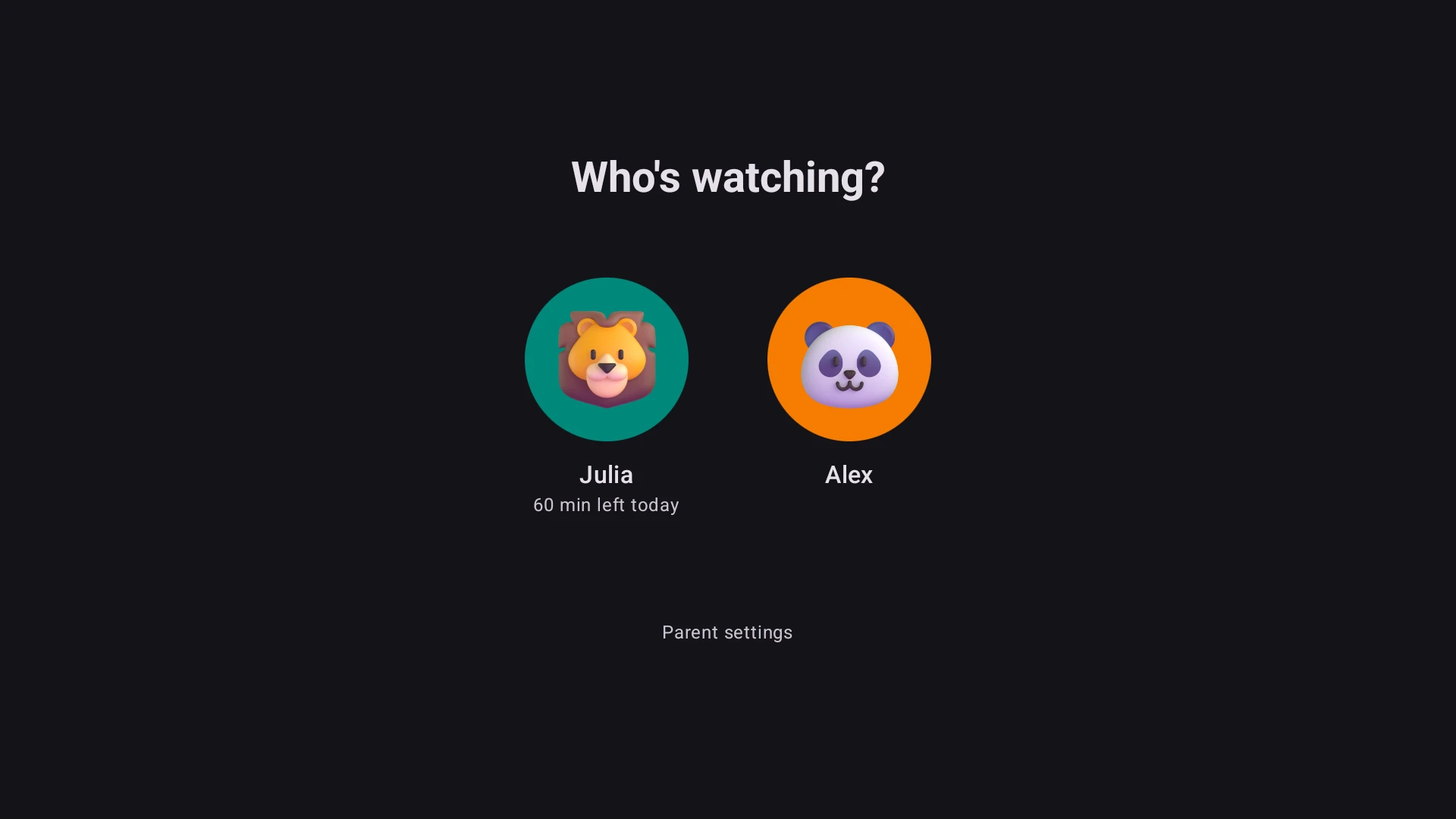
One television, separate child profiles
Each child gets a recognisable avatar and their own viewing profile. The shared TV asks who is watching before opening their library, so siblings can have different approved sources and time rules.
[03]
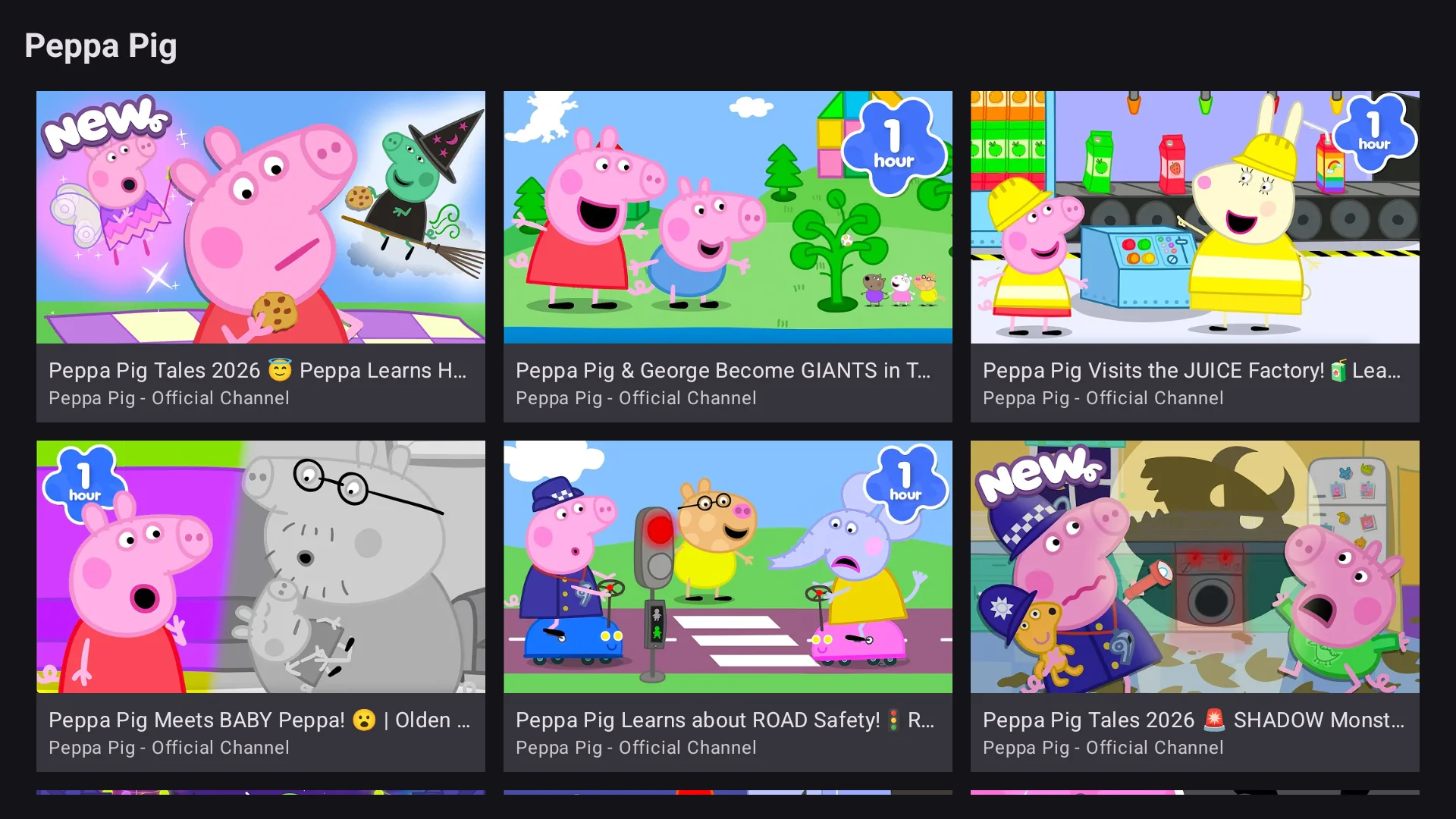
Browse inside an approved channel
Opening an approved channel shows its video library in large, remote-friendly tiles. Children choose from that source without opening the wider YouTube feed.
[04]
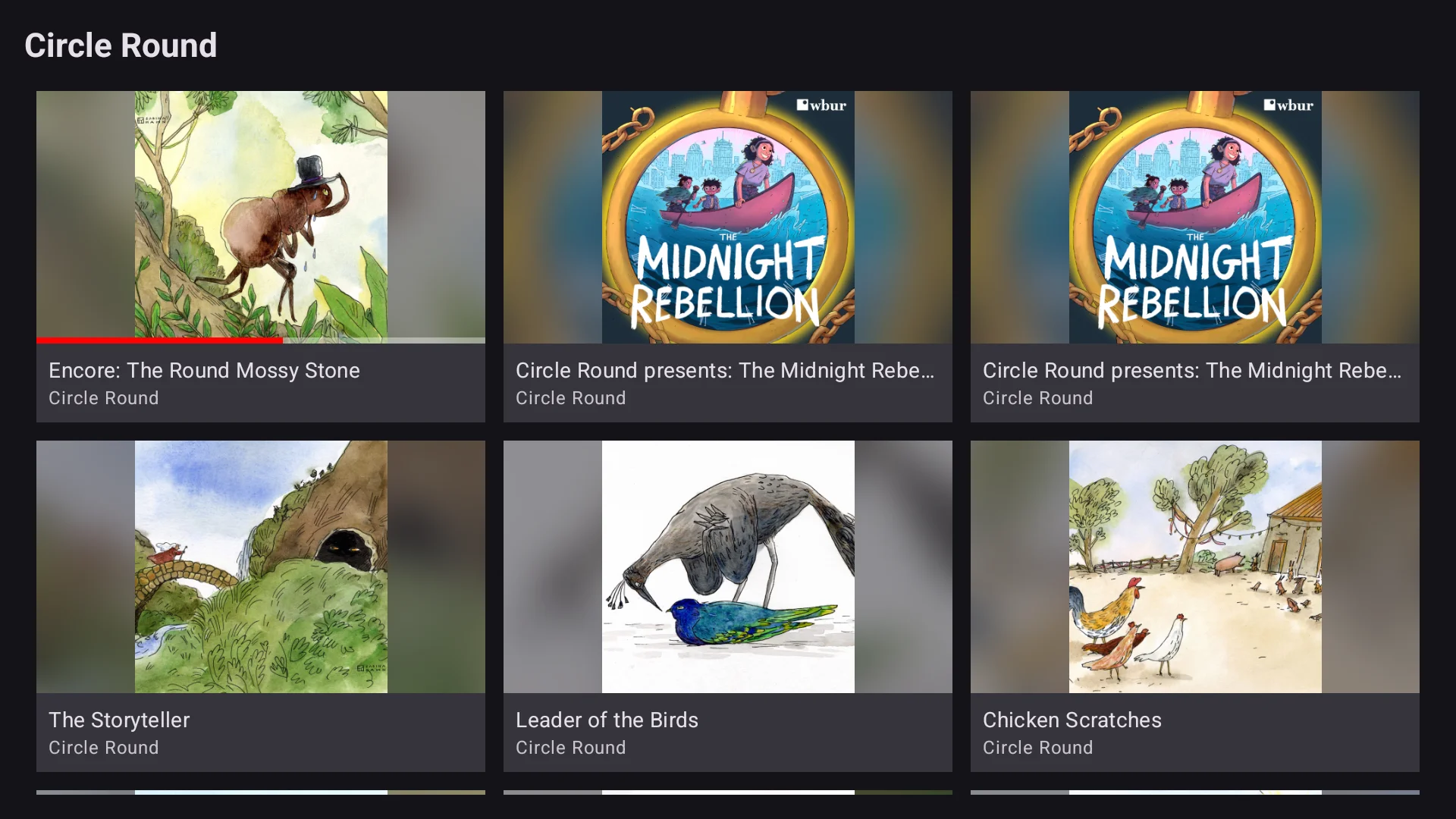
Story podcasts have their own episode library
A parent-added podcast opens into an episode library with artwork and listening progress. Children can choose a story from a show you have allowed, alongside the family's approved video sources.
[05]
A clear pause when it is time for a break
When a viewing rule stops video playback, Pickwick shows a simple break message and when watching can resume. The boundary is visible to the child, without another video competing for attention.
Swipe or use the arrow keys
[01 / choose what gets in]
Parental controls for YouTube, starting with an empty library.
Blocking individual channels leaves you looking for the next unwanted upload. A whitelist, also called an allowlist, starts with nothing available. You add the sources your family wants. Inside Pickwick, children see that approved library, and search stays within allowed channels.
That makes it useful when your goal is to only allow certain YouTube channels, rather than give access to a broad age category. Start with a small list, watch together, and revisit it as your child's interests change.
[+] A library for each child
Choose which children can access each source. Separate profiles let siblings have different content and viewing rules.
[+] Time boundaries, too
Set sessions, breaks and blocked times such as bedtime. Parents manage settings from a phone, behind a fingerprint or PIN.
[+] More than a feed
Keep favourites and continue watching in a remote-friendly TV player. Approved podcasts and home-network video collections can sit alongside YouTube sources.
[+] Your judgment stays central
A trusted channel can change direction. Channel approval includes new uploads, so keep reviewing what you allow; optional screening is an extra check, not a safety guarantee.
[02 / choose your level of approval]
Approve a creator, a collection or individual videos.
You do not have to give every source the same amount of freedom. Add a whole YouTube channel when you trust the creator's broader output. Choose a playlist for a narrower collection, or add specific video links to a custom playlist you manage yourself. A creator's channel and an externally maintained playlist can change, so neither means that you have reviewed every future addition.
Each source can be shared with everyone or selected children. For example, keep a young child's library to a few handpicked stories while an older sibling has access to a broader science channel. These are choices about sources and access, rather than a single family-wide strictness setting.
Optional screening, with your rules.
AI screening adds another check for YouTube content. Write family rules such as avoiding frightening scenes, then add instructions for a particular channel or custom playlist if needed. Decisions take each child's age into account. The parent's Blocked & reported page holds items needing review, and a parent can allow or block them. Children can also report a video that feels wrong, even when AI is off.
Review the setting for an incomplete pre-play check: the default allows playback when a check fails or lacks information; you can instead ask the app to hold those videos for parent review. AI checking is optional and imperfect, and does not screen podcasts or network videos. Read the screening and review instructions ↗
[03 / different children, different boundaries]
Per-child profiles, bedtime rules and limits for favourite shows.
Give each child their own profile, approved sources and viewing rules. Set session lengths, breaks and blocked windows for bedtime, school or dinner. Shared TVs can show a profile picker; personal devices can be dedicated to one child. An optional remote-button profile lock helps keep younger siblings out of an older child's library.
Source time multipliers let educational viewing use the overall allowance more slowly, or entertainment use it faster. For a specific show, a content group can combine its YouTube channels, playlists and network folders under one cap: for example, 10 minutes of that show in a 30-minute session. Other approved content can remain available after that group runs out, if the child's overall rules permit it.
Content groups count actual playing minutes, even for sources marked FREE. Their limits sync, but usage is counted separately on each device; changing from the TV to a tablet does not share one group counter. Podcasts sit outside these rules. Read the content-group examples and limits ↗
[04 / a story with the screen off]
Add bedtime story podcasts from their RSS feeds.
A parent-approved podcast can give a child something to listen to when watching is over. Add the show's public RSS feed under Content Sources, check the feed, then choose which children can access it. Each show gets a tile and an episode list. On Android phones, an episode keeps playing with the screen off and can resume from where it was left.
Podcasts do not use the video screen-time budget: breaks, bedtime windows and Pause everyone do not stop them. That makes them useful for bedtime stories, but it also means a video bedtime rule is not a podcast cutoff. Remove a feed or change its child access when you do not want it available.
Approving a feed includes future episodes. Podcasts are not AI-screened, and hosts may insert ads that Pickwick does not remove. Episodes stream from the host and need internet; podcast downloads are not supported. Use the RSS address rather than a Spotify or Apple Podcasts page. Read the podcast setup and listening guide ↗
[05 / your home collection]
Play approved shows from a router USB drive, computer or NAS.
Bring your existing family video folders into the same player. Save an SMB2/3 network connection once, then add catalog folders for the shows or collections you want. Children can browse the folder structure, including seasons and episodes. Set access for each child and choose a time rate for the catalog.
You do not need a separate media server or an internet connection for this playback, but the child's device must still reach the share on your home network. The drive or computer needs to be available, and the phone or TV must support the files' formats. Cached posters and episode listings are not downloaded copies of the videos, so this is a home-network feature rather than a travel library.
Adding a catalog approves its current and future video files, including subfolders; YouTube AI screening does not check them. Saved network episodes can join Favorites, Watch later and Up next while keeping their viewing rules. Read the network-share setup and compatibility guide ↗
[06 / prepare before you leave]
Parent-approved offline videos for car trips and patchy Wi-Fi.
Children can ask for an offline copy from a video's tile; the parent decides whether to approve it. In Devices → Offline downloads, choose the quality, follow progress and remove files you no longer need. With AI screening enabled, a request is deep-checked before it reaches the approval list.
Before travelling, complete the downloads on the actual phone or tablet your child will take, check available storage and try playback there. The files live in that device's private app storage, so seeing a download on one device does not mean another device has a copy. Podcasts and network catalogs are not part of this download workflow.
For everyday viewing, children can also keep Favorites, save Watch later items and build an Up next queue from their approved library. Queued videos retain their viewing rules. If you enable video listen mode, screen-off audio uses the listening rate and permissions you set; podcasts have their own screen-time-free behaviour. Read the download approval and everyday controls guide ↗
[07 / find the right boundary]
YouTube, YouTube with controls, a YouTube whitelist or Pickwick: which fits your family?
These are four different boundaries. Regular YouTube leaves the whole catalogue open. Its controls, in a supervised account or YouTube Kids' age settings, let Google filter by level. YouTube Kids' Approve content yourself setting is already a real parent-selected whitelist. Pickwick is another way to build an approved library, with its own viewing rules and support for podcasts and home videos.
Checked 7 November 2026. Written by Pickwick's developer. Google settings and availability can vary by account, device and region; the links below go to Google's own instructions.
On a small screen, swipe the table sideways. Keyboard users can focus the table area and use the arrow keys.
Compare content selection, daily routines and practical trade-offs
Your concern
YouTube Regular, no parental setup
YouTube with controls Supervised account or Kids age settings
YouTube's full public catalogue. There is no parent list.
Google's filters. Supervised accounts use Older kids, Teens or Older teens; YouTube Kids uses Preschool, Younger or Older. Neither is a list you choose.
Only the videos, channels and collections a parent handpicks.
Only sources you add: channels, playlists, selected videos, podcasts and network folders.
Supervised: search is not among the features Google turns off, and the content level limits what a child can find. Kids: a parent can turn search off, leaving channels verified by YouTube Kids plus anything you share.
Both are available. You can set your own Shorts feed limit, but the reminder can be dismissed.
Parents of supervised teens can set a Shorts feed limit, including zero. Google's pages differ on whether it can be dismissed, so test it. Supervised under-13s cannot post comments, and cannot read them on the Older kids setting.
Google's parent-sharing tool excludes Shorts. Its help does not say how Shorts behave within an approved channel, so check your child's library.
No Shorts feed and no comments in the child interface.
It relies on reminders. Take a break pauses the video until dismissed, and a bedtime reminder can be dismissed or snoozed.
Supervised: parent-set reminders can be dismissed, and the Shorts limit covers only the Shorts feed. Kids: the session timer locks the app when time runs out.
The same YouTube Kids session timer. Approval is a content choice and does not change when viewing stops.
Per-child sessions, breaks, blocked windows, extra-time grants and content-group caps.
Ads run unless you pay for Premium. Promotions built into a creator's video can remain either way.
Supervised: personalised ads are off and some ad categories are prohibited. Kids: limited, reviewed paid ads. Premium removes paid ads.
Approval mode does not itself remove paid ads; Premium does. Creator content still needs your review.
No YouTube ad breaks in the player. Sponsor segments are skipped using community SponsorBlock data, which can miss some. Podcast hosts can still insert ads into their audio.
Official apps and website across phones, computers, smart TVs and consoles.
Supervised: the YouTube app and website, eligible smart TVs, PlayStation, Xbox and Switch, in listed countries. Kids: menus vary by device, so test each one.
Choose this mode in the Kids app, then verify it on each child device, including the TV.
Android phones/tablets, Android TV, Google TV and Fire OS 6+. An Android parent phone is required.
Free and official, with optional Premium. Nothing is filtered for your family until you set it up.
Free and official. Google itself warns a child may still find content you do not want them to watch.
Free and official, with the ongoing work of selecting and reviewing content.
Free open-source beta, installed as an APK. It plays streams outside YouTube's official player, against YouTube's Terms of Service, and can break when YouTube changes.
Viewing can be signed out. Signed in, Google Account activity may influence recommendations.
Managed from a linked parent account. Parents can pause a child's watch and search history; personalised ads are off for supervised children.
Changing a child's settings uses your parent account password.
No Pickwick account or family-settings cloud. Source services still receive playback requests; hosted AI receives screening data if enabled.
Three distinctions that make the comparison fair
Search off is not the same as approved-only. Switching off search narrows YouTube Kids, but it does not mean you selected every accessible channel. Conversely, Google says recommendations in approved-only mode come from the content you approved. If your concern is unexpected suggestions, check which mode is actually selected before replacing the app. How Kids recommendations work ↗
A whitelist still needs maintenance. Choosing a channel approves a source, not a permanent promise about its future uploads. A creator can change format, and similar material can appear on another channel. Google explicitly notes that blocking one channel does not cover reuploads elsewhere. In either app, a small collection of individually chosen videos can give you a more specific boundary than approving an entire creator. Blocking and sharing limits ↗
Paid ads and the content of a video are different. Google reviews paid ads in Kids and Premium removes them; its policies also exclude videos whose creators disclose endorsements. That still leaves parents deciding which videos fit their family. Pickwick's player has no YouTube ad breaks, but that does not certify every video or remove ads inserted by a podcast host. Google's advertising explanation ↗
Supervised YouTube and Restricted Mode are not whitelists
A supervised account filters regular YouTube by content level and lets a parent block channels and disable autoplay, but it has no list of allowed channels. Handpicking exact videos is a YouTube Kids option. Family Center can also set a Shorts feed limit for supervised teens, including zero; Google's help pages differ on whether that limit stops scrolling or can be dismissed, so test it on your child's device. Review current supervised-account controls ↗
Restricted Mode screens potentially mature material, browser by browser and device by device. It does not express your chosen list of creators or your own family rules, and it may help with a different goal. What Restricted Mode filters ↗
What parents describe in everyday use
These public discussions are individual experiences, not a survey or evidence that every family encounters the same problem. Older reports can describe a different version or device. They help identify questions to check during your own setup.
Finding the right setting takes work
In an October 2025 discussion, a parent explored whitelisting as their child became more independent with the remote. The useful starting question is how much browsing freedom you want, rather than assuming an age label matches all of your preferences.
Approval can work well, but curation takes time
An approved-content thread from October 2025 includes both a parent struggling with curation and another saying approvals work immediately. Test the same account and device combination your child will use; a troublesome setup is not proof that the feature cannot work.
Children still want to find a favourite
A December 2025 parent question focuses on searching an approved library on TV. Google disables child search in approved-only mode. Pickwick's search within allowed channels may suit a family that wants children to find a known video without opening broader search.
Blocking and recommendation feedback get confused
A discussion about a particular channel illustrates why parents need to distinguish recommendation feedback from parental blocking, and one creator's channel from related channels. An allowlist changes the starting boundary, but parents must still review what they add.
Different households reach different answers
A May 2026 discussion of family YouTube rules includes families happy with Kids and others who find manual approval tiring. A simpler official setup may be the best fit for one household; another may value more detailed routines enough to maintain a separate app.
When YouTube Kids may be enough
Try approved-only first if you want a free, officially supported way to handpick content and its device support suits your household. Choose a custom parent passcode, disable autoplay if you prefer deliberate choices, and test its session timer. Premium offers official downloads and screen-off listening; review Smart downloads if you want to choose each saved video yourself.
On a shared TV, consider Google's parent code to gate signed-out viewing, switching to older household accounts and removing accounts. That code protects the TV experience, not every device or another app.
When Pickwick may fit
Consider Pickwick if you want search within approved channels, detailed per-child sessions and breaks, caps for particular shows, or one child-facing library combining YouTube, RSS podcasts and SMB folders. Its open source and local family settings may also matter to you.
Be comfortable maintaining a sideloaded Android beta: there is no native iPhone, desktop or Roku version. Pickwick plays streams directly outside YouTube's official player, against YouTube's Terms of Service, and playback can break after YouTube changes. Neither app locks every exit from the device or replaces watching and talking together.
[08 / from tablet to television]
Approved YouTube channels on Google TV, Android TV and Fire TV.
Pickwick is built for Android phones and tablets as well as a TV remote. For the living room, use an Android TV or Google TV device, or a supported Fire TV running Fire OS 6 or newer. An Android parent phone manages the library; it pairs with the child device over your home Wi-Fi.
There is no native iPhone, iPad, Apple TV, Roku, Samsung Tizen or LG webOS version. Check the setup guide before installing. Installing Pickwick on a supported streaming device does not restrict the TV's other inputs or apps.
[09 / build your first whitelist]
How to set up approved-channel viewing.
Install the Android APK.
Get the latest release from GitHub on the parent's Android phone and the child's supported device. Pickwick is sideloaded, so follow the device-specific installation instructions.
Pair on the same home Wi-Fi.
Open the TV's settings to show its QR code, then scan it with the parent phone. The phone becomes the place to manage sources and children.
Add channels and set access.
Choose the YouTube channels or playlists you want, then decide which child can use each source. Set viewing sessions and bedtime rules before handing over the remote.
Check the whole device.
Try the child's profile yourself. Use available device controls to restrict unrestricted YouTube, browsers and app installation. Keep the app updated as YouTube changes.
Pickwick does not require a Pickwick account or run a cloud service for your family settings. Those settings live on your devices; uninstalling can lose them. Video playback still contacts the relevant content services, so local settings do not mean offline YouTube or zero network traffic.
AI screening is optional. If you enable a hosted AI provider in the app, review its settings and privacy terms: video information, transcripts and your screening rules may be sent to that provider using your own key. This page collects no API key and performs no screening.
Pickwick is beta software. Playback can break when YouTube changes, and newer features may vary by device. It plays streams directly outside YouTube's official player, which is against YouTube's Terms of Service. It is an independent project, not affiliated with or endorsed by YouTube or Google.
YouTube whitelisting for kids: questions answered.
How do I only allow certain YouTube channels for my child?
Use a player with a parent-managed allowlist. In Pickwick, install the Android app, pair your child's device with your Android phone, then add the channels or playlists you approve. Your child browses those sources inside Pickwick. Also restrict access to other video apps and browsers using the device's parental controls.
Does approving a channel mean every video has been reviewed?
No. A channel allowlist approves the source, including future uploads; it does not mean a parent has watched each video. Review channels regularly, remove unsuitable sources, and use narrower playlists when appropriate. Optional AI screening can help review YouTube videos against your rules, but it can make mistakes and does not replace your judgment.
Can I use Pickwick on Google TV, Android TV or Fire TV?
Yes. Pickwick supports Google TV and Android TV, plus Fire TV devices running Fire OS 6 or newer. Install the APK by sideloading, then use an Android phone on the same home Wi-Fi to pair and manage the TV. It is not a native app for Roku, Apple TV, Samsung Tizen or LG webOS, and the parent app is not available for iPhone.
Does Pickwick block YouTube Shorts and recommendations?
Pickwick leaves the Shorts feed, comments and algorithmic recommendations out of its child interface. Children search within allowed channels rather than browsing all of YouTube. This changes viewing inside Pickwick; it does not remove Shorts from the separate YouTube app or website.
Is Pickwick free, and do we need a Google account?
Pickwick is free and open source under GPL-3.0. There are no Pickwick accounts and no Google login is required for its player. Optional AI screening may cost money with a provider you choose. The app is in beta and is installed from GitHub, not an app store.
Can my child get around the whitelist by opening another app?
Pickwick controls its own library, not the whole device. A child who can open an unrestricted browser or another video app can leave that library. Use the phone or TV's available app restrictions, installation controls and parent account protections alongside Pickwick. No app should be treated as a substitute for supervision.
Can I approve individual YouTube videos instead of a whole channel?
Yes. Search for a video or paste its link in Content Sources, then add it to a custom playlist you create. This lets you assemble a smaller collection instead of approving every upload from its channel. Custom playlists have their own per-child access and time settings. When AI screening is enabled, added videos are checked too unless you switch off checking for that source.
What is the difference between allowing a channel and a playlist?
A channel allows content from that creator, including future uploads. A playlist narrows the collection to its entries, but a playlist maintained by someone else can change. For a list you manage yourself, add selected videos to a custom playlist. In every case, choose which children can access the source and review the collection as it changes.
Can siblings have different approved channels and screen-time limits?
Yes. Create a profile for each child and use the per-child switches on channels, playlists, podcasts and network catalogs. Each child can have different sessions, breaks and blocked times. A shared TV can ask who is watching, while a personal device can be dedicated to one child. An optional remote-button profile code helps prevent a younger sibling choosing an older child's profile.
Can I apply my own family rules to YouTube videos?
Optional AI screening lets you write family rules in plain language and receive decisions for each child's age. You can add instructions for an individual channel or custom playlist, and decide whether that source is checked with AI. These are separate controls you configure, rather than preset strictness modes. Screening can miss context or make mistakes; parents remain responsible for what they approve.
What happens when AI screening is unsure or a child reports a video?
Items needing a decision appear under Waiting for your OK on the parent's Blocked & reported page. Parents can allow or block them. A child's report hides the video for children on that device while it waits for review, even when AI is off. The app also offers a setting to hold videos for parent review when a pre-play check is incomplete; the default permits playback when that check fails or has insufficient information.
Can I play bedtime story podcasts with the phone screen off?
Yes. Add a suitable story podcast using its public RSS feed. On Android phones, episodes continue with the screen off and resume where they were left. Podcasts do not use screen time, and bedtime, breaks and Pause everyone do not stop them. They still need internet to stream, and podcast downloads are not supported. Review the whole feed, including ads and future episodes, before giving a child access.
Why does my podcast link not work, and can I paste a Spotify link?
Pickwick needs the podcast's public RSS feed address, rather than its Spotify or Apple Podcasts page. Look on the show's website for an RSS or Subscribe via RSS link. In Content Sources, open Podcasts, paste the feed, use Check feed, then save it and choose the children who can access it. A show without a public compatible feed cannot be added this way.
Can Pickwick play children's shows from a NAS or router USB drive?
Yes, through an SMB2/3 network share. Save the connection in Content Sources, choose catalog folders, and set each catalog's child access and time rate. Children browse shows, seasons and episodes in those folders. No media server is required, but the playback device must support the files' audio and video formats and be able to reach the share on your home network.
Does playing home-network videos work without internet?
Yes, SMB playback does not need an internet connection, but the child device still needs a working connection to the computer, router or NAS serving the files. Cached listings and thumbnails do not save the videos themselves. Taking a tablet away from home does not take your network library with it, and network catalogs are not part of Pickwick's download workflow.
Can my child download approved videos for a car trip?
A child can request an offline copy from a video tile. The parent approves or declines the request and chooses download quality in Devices, then Offline downloads. With AI screening enabled, requests are deep-checked before reaching approval. Finish the download on the actual travel device, check its storage and try playback before leaving. Files are stored in that device's private app storage; podcast and network-catalog downloads are not supported.
Can I limit one favourite show without blocking the whole session?
Use a content group containing the show's YouTube channels, playlists or network catalogs. For example, give that collection 10 minutes within a 30-minute session for one child. When the group is used up, other approved content can remain available if the child's overall rules allow it. Group caps count actual playing minutes and are enforced separately on each device; podcasts cannot be included.
Can educational channels cost less screen time than entertainment?
Yes. Sources can have different time multipliers, so one channel can use the overall time allowance more slowly and another more quickly. A FREE source does not use the daily budget, but it still respects breaks and blocked times. Content-group caps count real playing time regardless of those multipliers, including FREE sources, so a favourite-show cap remains a separate boundary.
Can kids save favourites or make a queue without leaving the whitelist?
Yes. Holding a tile opens options such as Favorites, Watch later and Up next. The queue can mix approved videos and podcast episodes. Each video retains its applicable viewing rules, while podcasts remain outside screen time. Up next is saved on the current device, so it is useful to prepare the queue on the device your child will use.
Does YouTube Kids already have a channel whitelist?
Yes. Its Approve content yourself setting lets a parent choose videos, channels and collections. Children cannot search in that mode, and its recommendations come from approved content. Try that official option if it meets your needs; Pickwick adds a different approved-library experience with search inside allowed channels and its own family viewing rules.
Is Restricted Mode the same as approved channels only?
No. Restricted Mode filters potentially mature material rather than limiting viewing to a list of creators selected by a parent. YouTube Kids approved-content mode, supervised main YouTube accounts and Restricted Mode are different settings. Check which experience the child is actually using before comparing its controls with Pickwick.
Can a supervised YouTube account allow only certain channels?
No. A supervised account filters regular YouTube by content level, and a parent can block individual channels, but it has no list of allowed channels. Handpicking exact videos and channels is a YouTube Kids setting. Blocking also covers only that channel, not reuploads elsewhere. If you want an allowlist, compare YouTube Kids' Approve content yourself setting with Pickwick.
Does YouTube Kids have a timer that actually stops viewing?
Yes. Its built-in session timer locks the Kids app when the time limit is reached. Pickwick offers its own per-child sessions, breaks, blocked windows and content-group caps. Which approach fits depends on the routine you want and the devices your family uses.
Do I need Pickwick for offline videos or screen-off listening?
Not necessarily. YouTube Premium provides downloads and background play in YouTube Kids. Its Smart downloads can be turned off so you can select videos yourself. Pickwick has parent-approved video downloads and optional listen mode, while RSS podcasts work separately and are not downloadable. Prepare and test saved videos on the actual travel device before leaving.
[ your library / your rules ]
Start with the channels you trust.
Download the free beta and build your family's approved library.